 BUY NOW, PAY LATER
 CANADA-WIDE SHIPPING
 LIMITED TIME DEAL & SALE





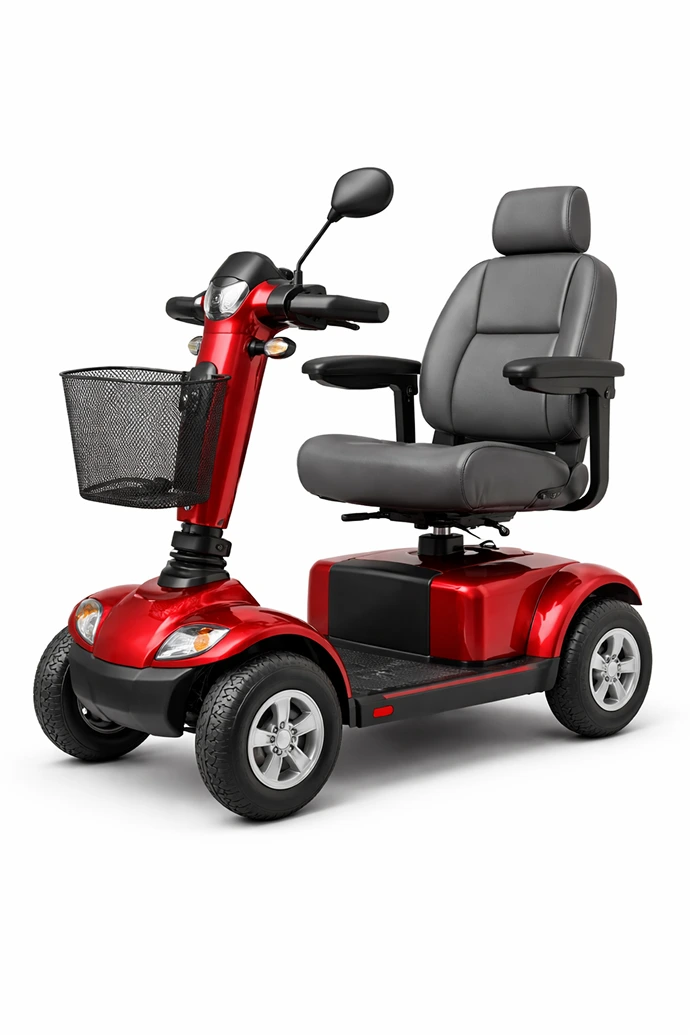
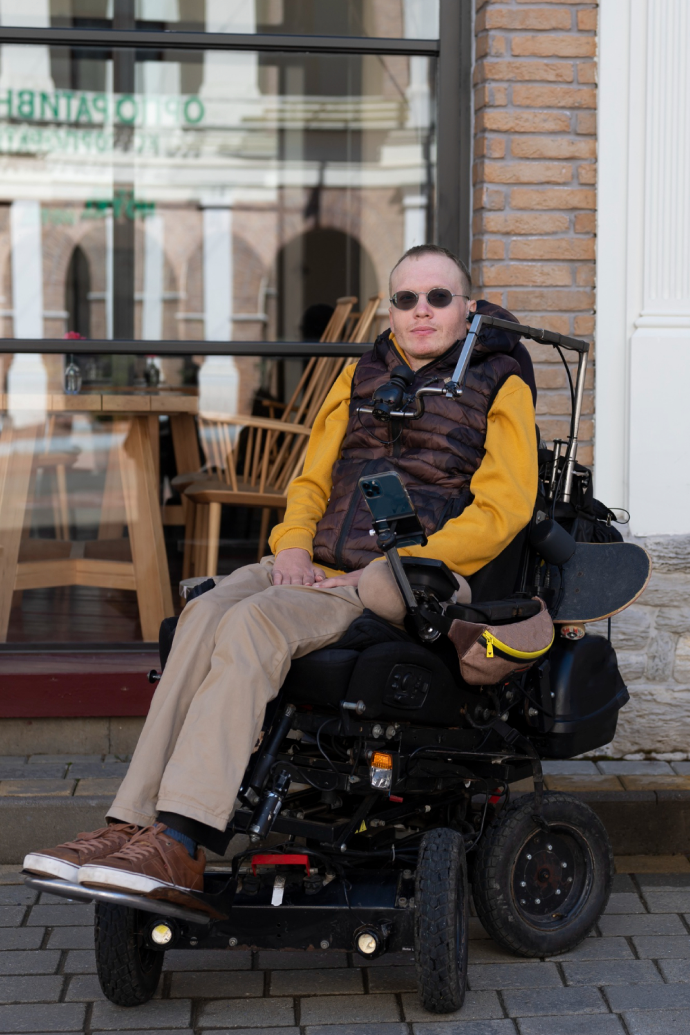
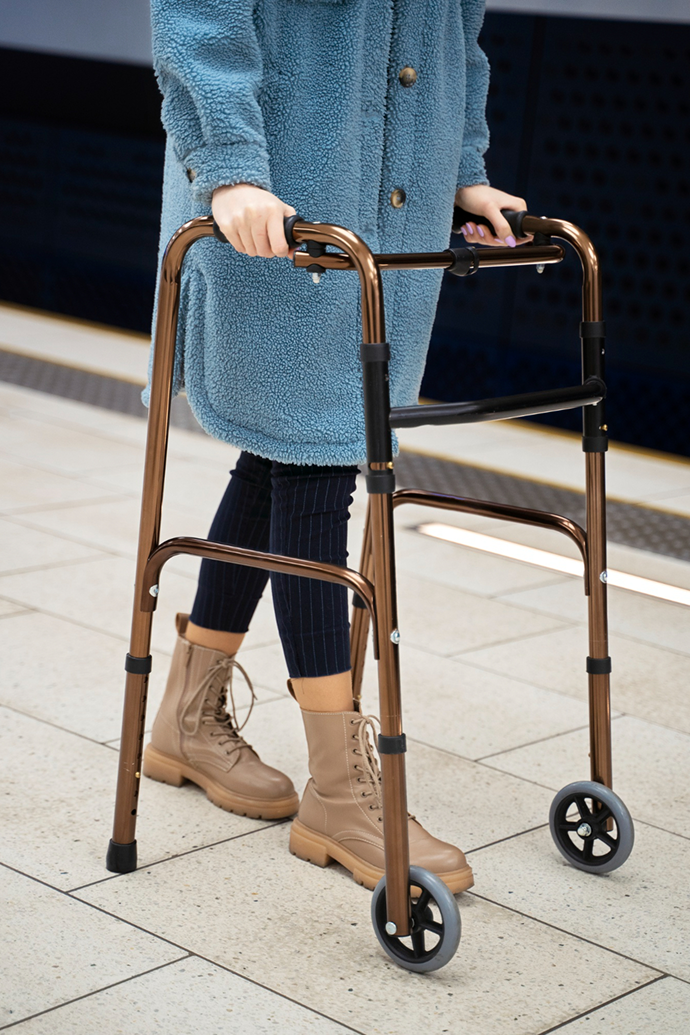
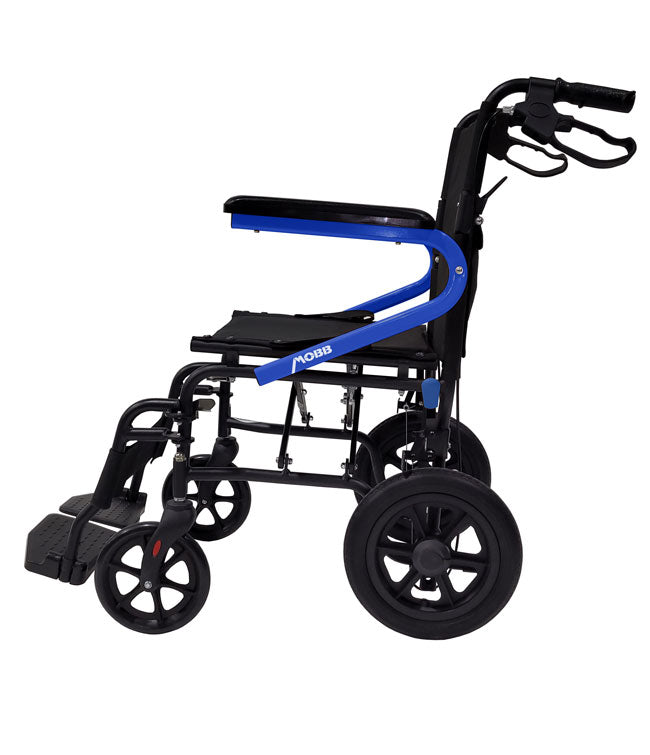
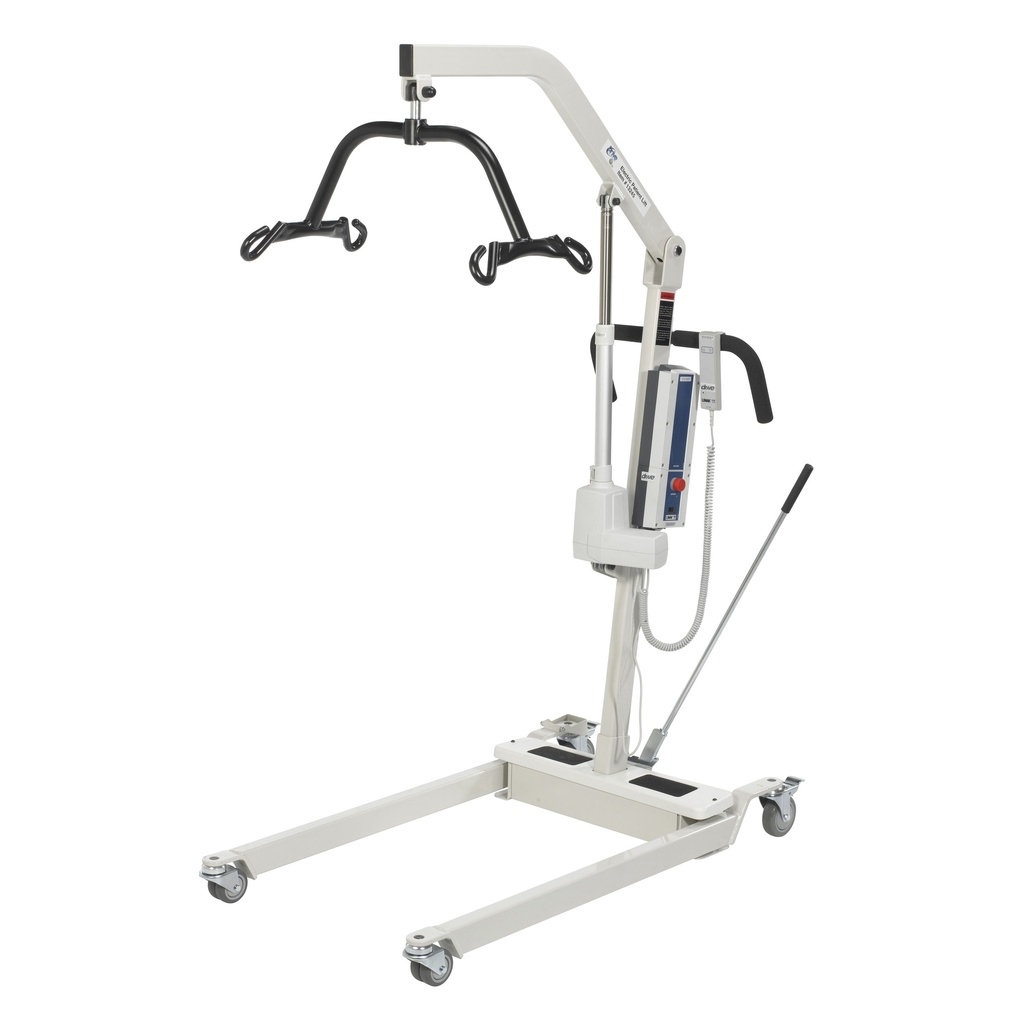
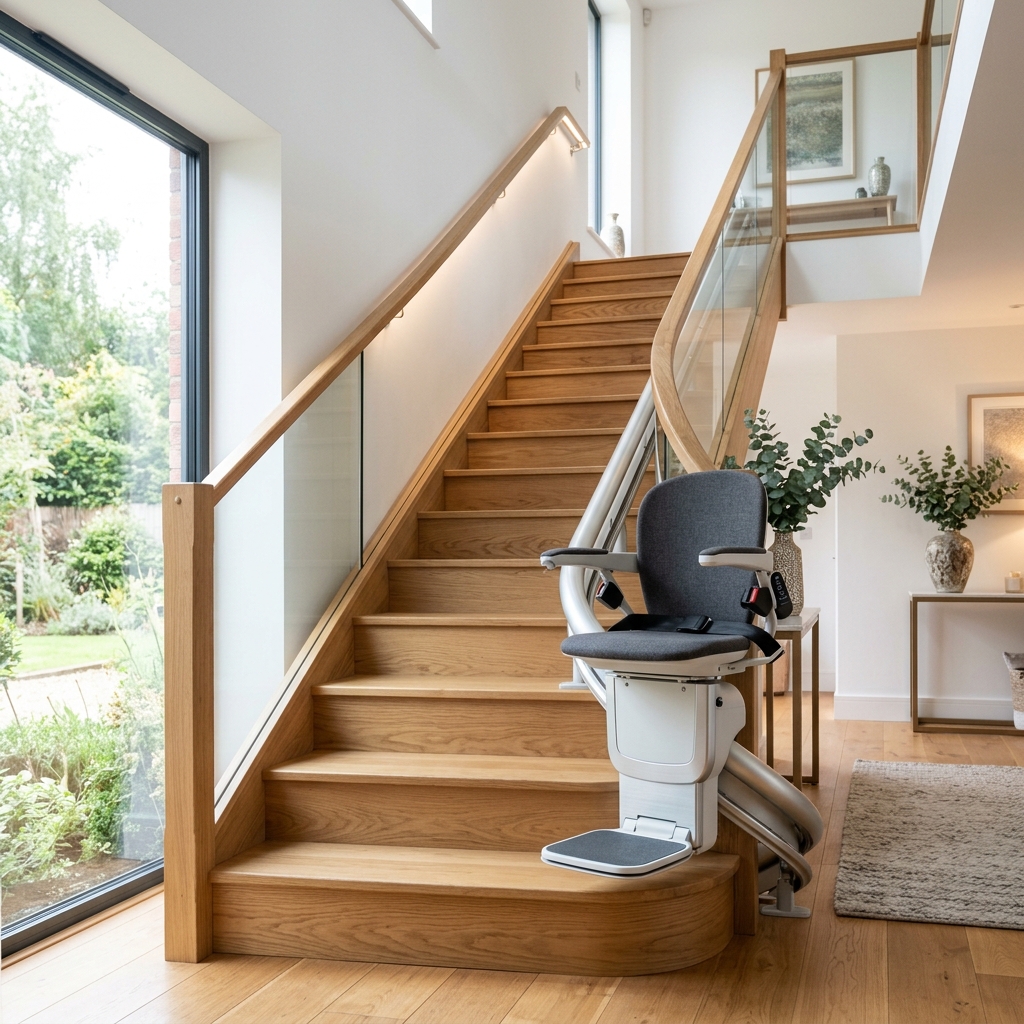
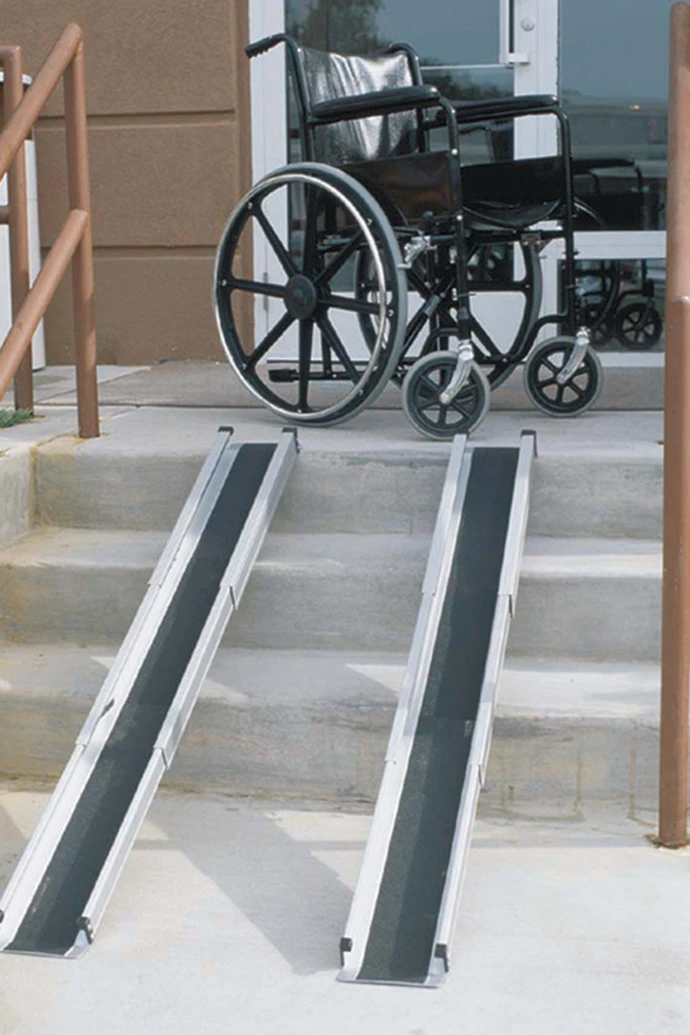
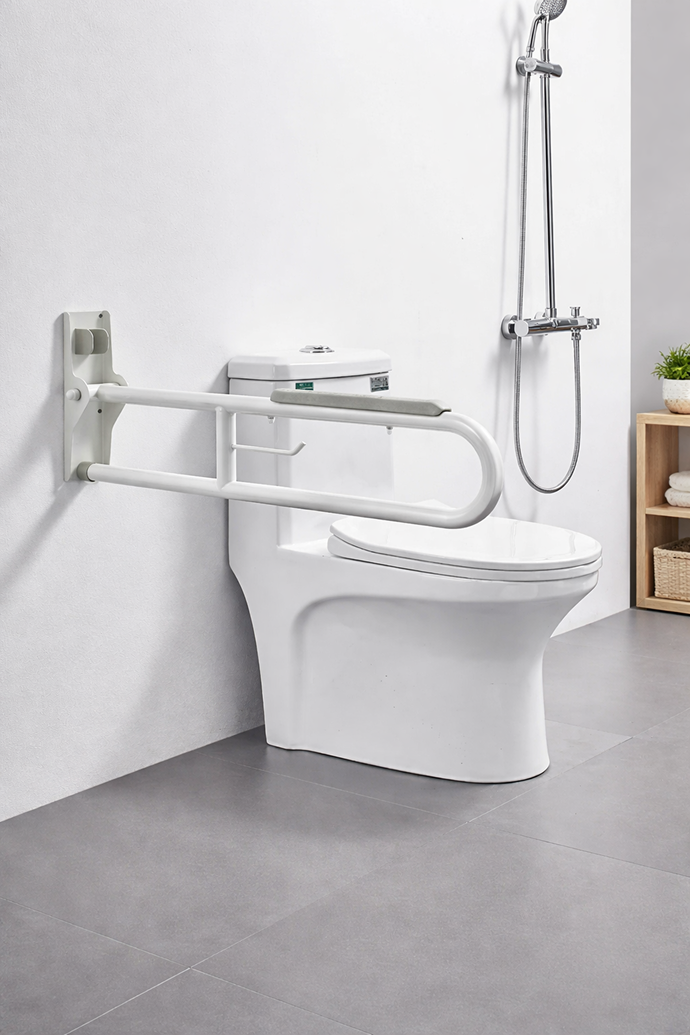
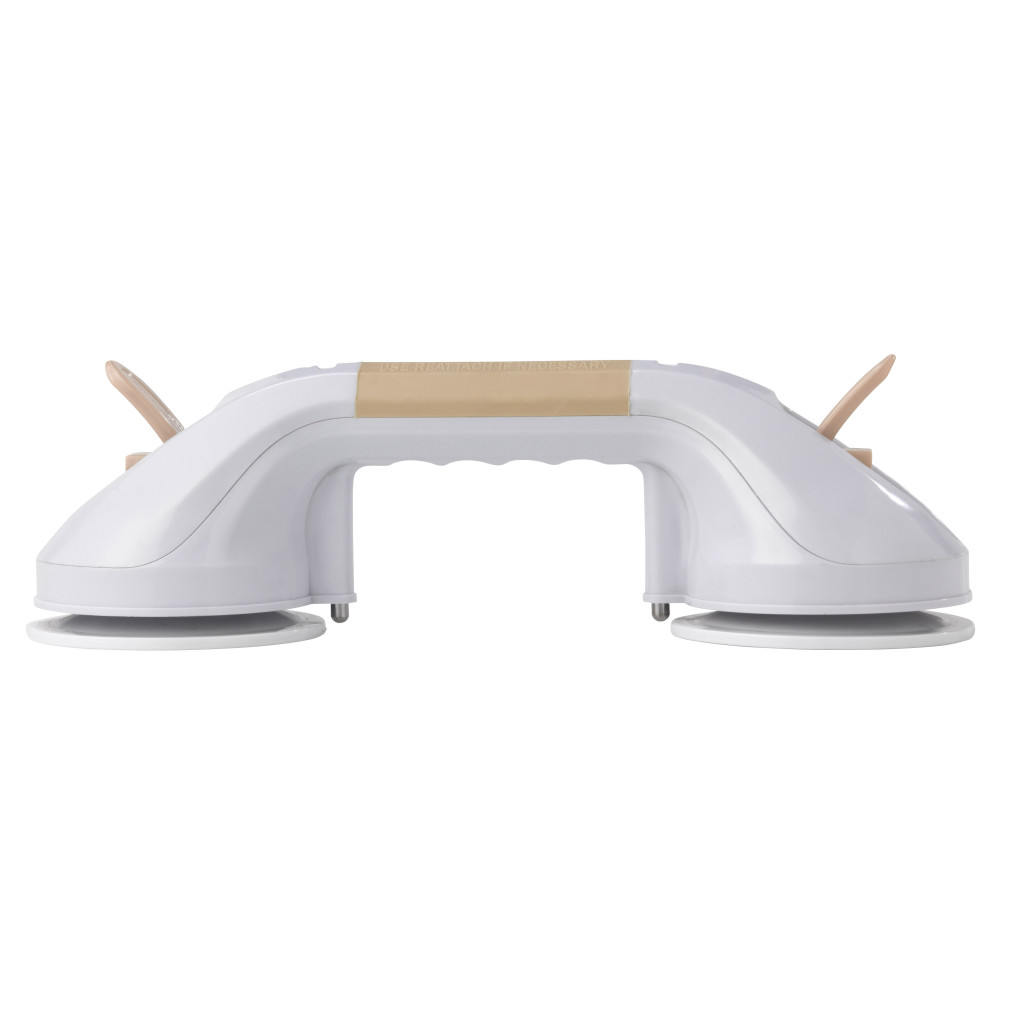
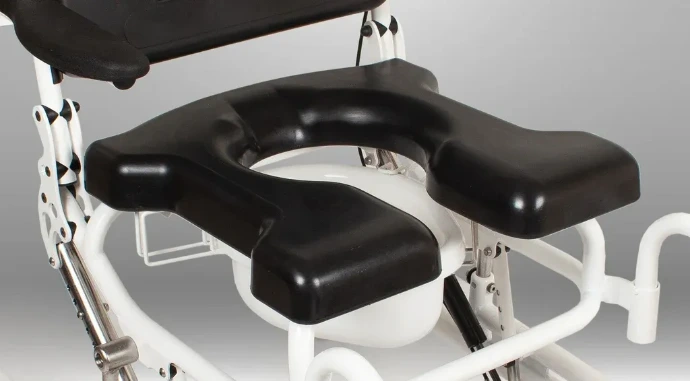

Funding Program Overview
Assistive Device Program (ADP) is a program operated by the Ontario Ministry of Health and Long-Term Care that provides support and funding for mobility equipment to Ontario residents who have long-term physical disabilities.
The ADP contributes to covering the costs of items such as manual and power wheelchairs, rollators and walkers, scooters, and specialized seating. Read more about the program at Government of Ontario’s Mobility Aids information page.
How much ADP covers?
The Assistive Devices Program (ADP) covers up to 75% of the cost for most mobility equipment and essential medical supplies. For those eligible under the Ontario Disability Support Program (ODSP), ADP may fund up to 100% of approved expenses.
ADP is billed directly for these items, so you only pay the remaining 25% at the time of purchase, making quality mobility solutions more accessible and affordable for everyone.
Repair & Replacement
Please note that ADP Funding does not cover repair costs; you are responsible for these expenses. Regular care and maintenance of your equipment are essential to ensure optimal performance.
If your equipment needs replacement due to a change in your condition or if it is out of warranty and beyond reasonable repair, ADP may provide partial funding toward the cost of new equipment, subject to eligibility.
Step by Step Guide for the ADP Funding Procedure
Follow our step by step guide to get Assistive Device Program Funding for Rollators, Walkers, Wheelchairs, Mobility Scooters & Power Wheelchairs
1
STEP 1 – MEET THE ELIGIBILITY
To qualify for ADP Funding, you must:
- be an Ontario resident
- have a valid Ontario health card
- have a disability requiring the equipment or supplies for six months or longer
2
STEP 2 – ARRANGE AN AUTHORIZED THERAPIST
You will need an authorized occupational or therapist. We can arrange one for you or you can call LHIN (Local Health Integration Network) and request an occupational therapist. Call us at 416-474-4830
3
STEP 3 – NOTIFY THERAPIST
An Occupational Therapist will book an appointment with you to come at your residence to check your eligibility. Refer “JJ HealthCare Products” as your preferred vendor.
They can either reach us by calling 416-474-4830 or email us at jjhealthcareproducts@gmail.com
4
STEP 4 – SCHEDULE ASSESSMENT
We will book free in-home equipment assessment with you and your therapist. We will trial the equipment with you to see which equipment works best for you.
5
STEP 5 – FINALIZE EQUIPMENT
We will finalize the equipment after carefully considering your needs. We will then order your final equipment.
*Power Mobility Equipment excepted.
6
STEP 6 – PAY & DELIVERY
At this point, you will be paying your 25% portion and finalize the sale. We will be delivering the equipment to your residence. We will also be collecting the paperwork from your Therapist for submission to the ADP.
7
STEP 7 – SUBMIT APPLICATION
We will submit the paperwork to the ADP at no cost to you. We will notify you if your equipment has been approved.
ADP Documents
You must download Adobe Acrobat Reader (version 10.0 or above) to view/print PDF forms. Click here for further instructions.
If PDF forms do not open in the latest versions of Firefox and Chrome, click here for the solution.
Download the free Adobe Acrobat Reader
When encountering a problem opening PDF using a browser such as Chrome, please follow these steps to open and complete the form.
- Highlight the form on the Repository, right-click to select “Save link as” to save the PDF form onto the desktop. Do not double-click the form and open it in a browser.
- Open the form that you saved on the desktop with Adobe Reader. Do not double-click to open the PDF form as Adobe Reader might not be the default program to open PDFs on your computer.
- Now complete the form, save the data, and close it. Then open again to see if the input data is there.